





Build workflows visually
like sketching on paper
An interactive canvas with zoom, pan, drag-from-library nodes, drawn connections, auto layout, and undo.
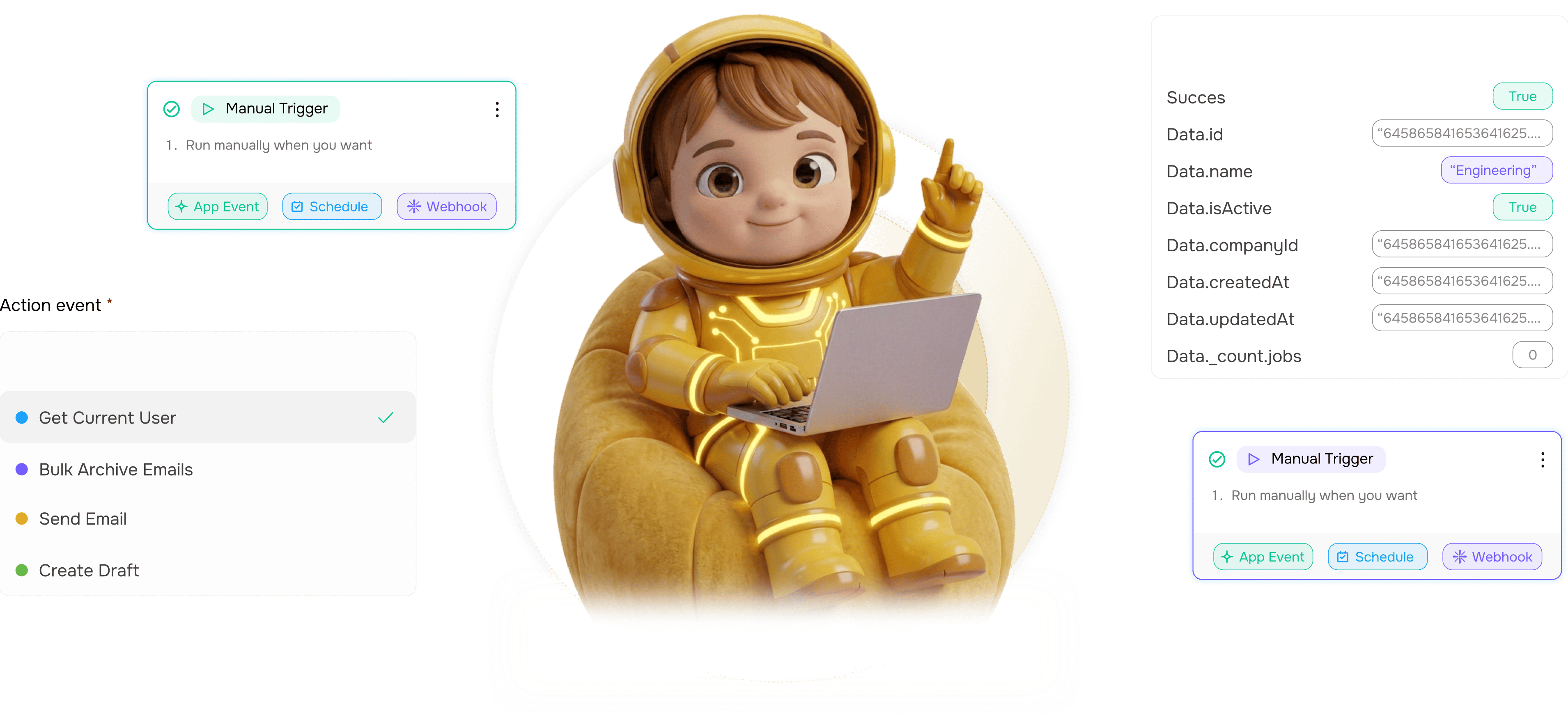
From blank canvas to running workflow in 4 steps
Drag the nodes you need, draw the connections, and let auto layout tidy the diagram as fast as you think.
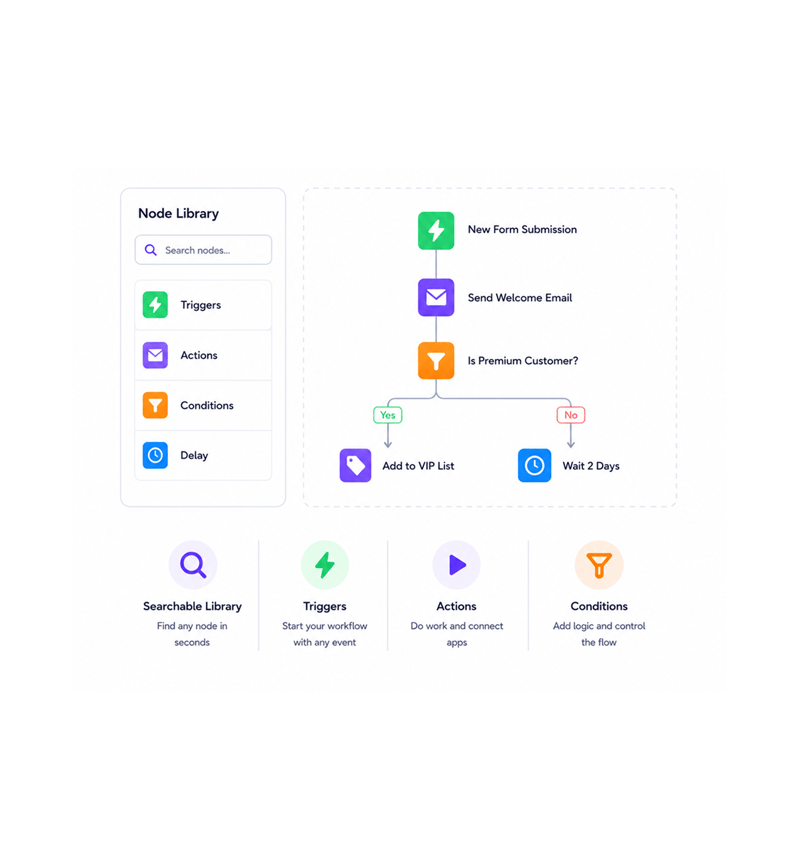
Node Library
Drag nodes from the library
The library sits beside the canvas with every trigger, action, condition, loop, and delay you need. Grab one and drop it where you want. Searchable, grouped by category, with the most used nodes pinned at the top.
- Searchable Library
- Triggers
- Actions
- Conditions
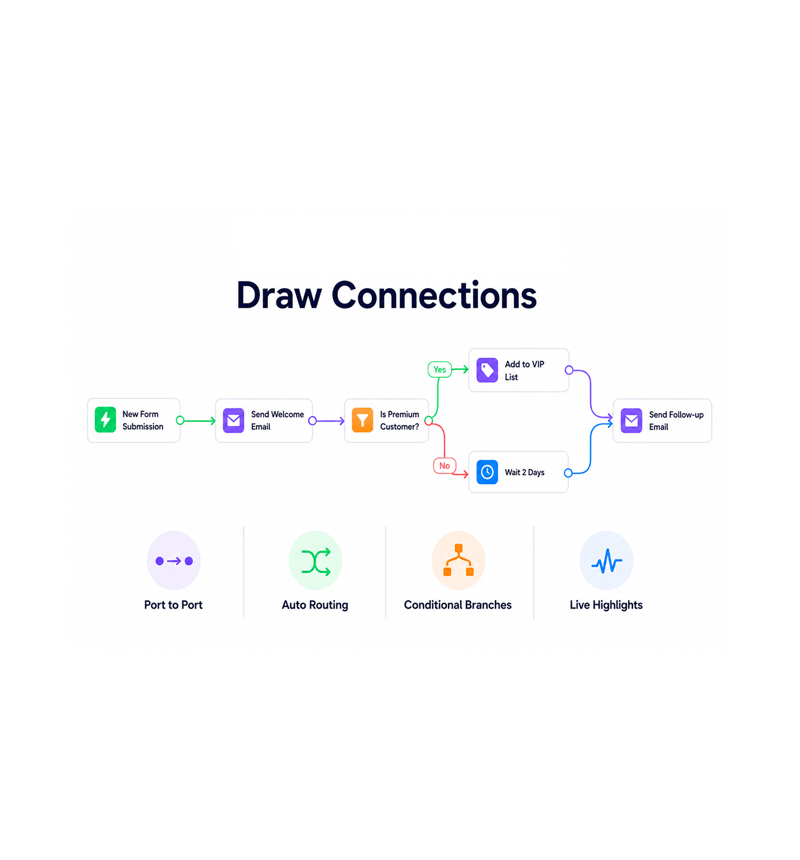
Draw Connections
Draw the connections
Drag from the output port of one node to the input of the next and a clean curve draws itself between them. The path adjusts as nodes move, branches handle conditional logic, and the active flow stays highlighted so the workflow reads like a story.
- Port to Port
- Auto Routing
- Conditional Branches
- Live Highlights
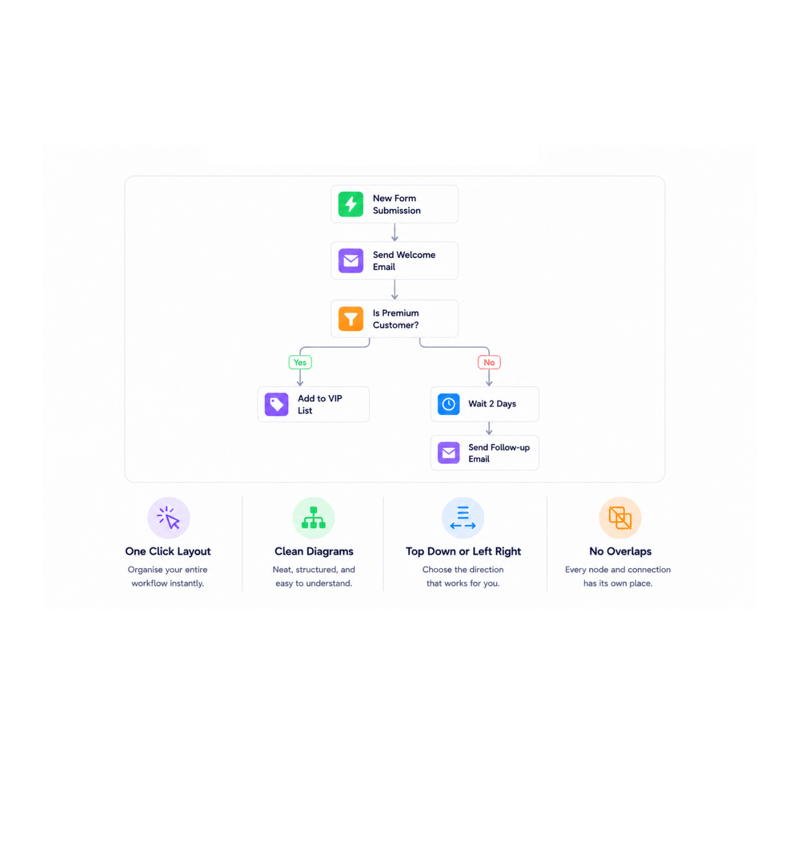
Auto Layout
Auto layout cleans it up
A twenty node workflow gets messy fast. One click on auto layout organises every node, connection, and branch into a clean diagram. Nothing overlaps, connections take the shortest sensible path, and the flow reads top to bottom or left to right.
- One Click Layout
- Clean Diagrams
- Top Down or Left Right
- No Overlaps
Power Editing
Edit at full speed
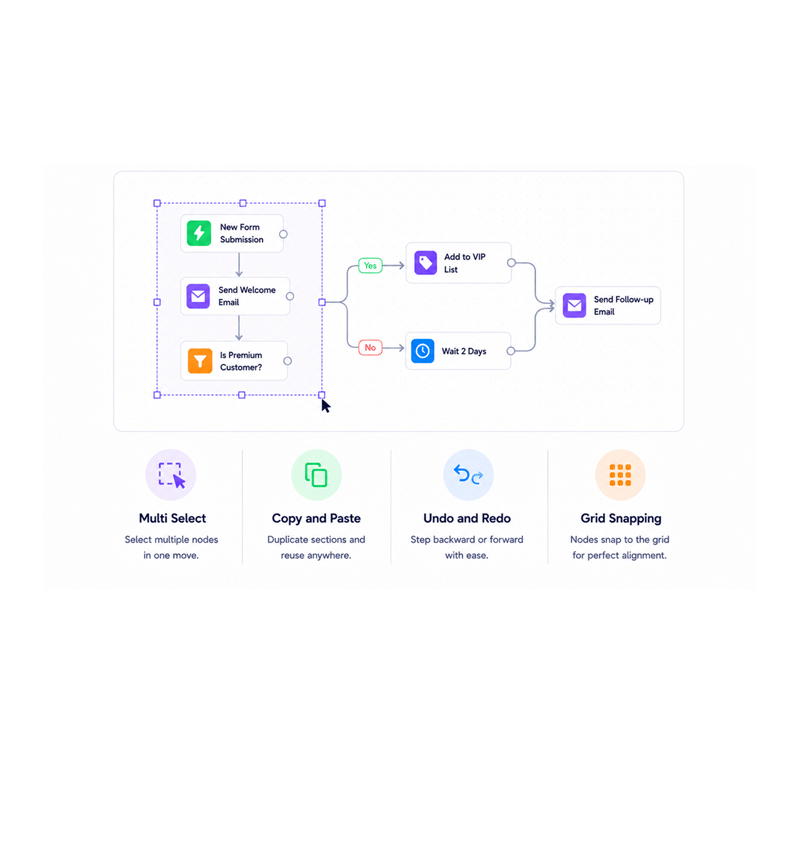
Multi select with a drag rectangle or modifier click. Copy a working section and paste it where you need a similar branch. Undo and redo through every change in the session. Grid snapping locks nodes into clean alignment automatically.
- Multi Select
- Copy and Paste
- Undo and Redo
- Grid Snapping
Six reasons teams never go back
Once a team works on a canvas that keeps up with their thinking, going back to a stiff workflow editor stops being an option.

Build the way you think visually
People think in boxes, arrows, and branches. A drag and drop canvas lets the team draw the workflow as they would on a whiteboard.

Big workflows stop being a mess
Simple workflows tangle as conditions get added. One click on auto layout untangles the diagram into a clean structure you can scan.

Mistakes are one click back
Deleted a connection? Undo. Wrong branch? Undo. Full session history means experimenting carries zero risk, so good workflows evolve.

Reuse what already works
An error branch, a welcome sequence, a lead scoring block: select, copy, paste into the next workflow. Patterns travel in seconds.

Pixel perfect without trying
Drop a node near a grid line and it locks into place. The canvas always looks ordered, so workflows shared with a client look deliberate.

Zoom out, see the whole story
Smooth zoom and pan let you fly out to the full workflow, then dive into a single step. Big picture and detail stay a scroll apart.
Build the way you think visually
People think in boxes, arrows, and branches. A drag and drop canvas lets the team draw the workflow as they would on a whiteboard.
Big workflows stop being a mess
Simple workflows tangle as conditions get added. One click on auto layout untangles the diagram into a clean structure you can scan.
Mistakes are one click back
Deleted a connection? Undo. Wrong branch? Undo. Full session history means experimenting carries zero risk, so good workflows evolve.
Reuse what already works
An error branch, a welcome sequence, a lead scoring block: select, copy, paste into the next workflow. Patterns travel in seconds.
Pixel perfect without trying
Drop a node near a grid line and it locks into place. The canvas always looks ordered, so workflows shared with a client look deliberate.
Zoom out, see the whole story
Smooth zoom and pan let you fly out to the full workflow, then dive into a single step. Big picture and detail stay a scroll apart.




6900+
Teams sketching workflows instead
of writing them
Built for teams that think visually
Operations, marketing, customer success, product, and founders use the Revo canvas to build business process automation. The node library is the toolbox, connections are the logic, auto layout is the cleanup.
& Drop
Layout
To Grid
Undo Steps
Drag, draw, done
The library, drawn connections, auto layout, and zoom and pan come together into a canvas closer to a sketchbook than a config tool. Build a workflow the way you would draw it, and it stays clean.
Everything the canvas ships with
A visual workflow builder inside the platform you use. Library, drawn connections, auto layout, undo, snapping.

Drag and Drop Node Library
Every trigger, action, condition, loop, and delay sits in a searchable library beside the canvas. Drag one in and it lands where you let go.

Hand Drawn Connections
Drag from the output of one node to the input of the next and a clean routed curve draws itself. Branches handle conditional logic.

Auto Layout for Clean Diagrams
One click on auto layout organises every node, connection, and branch into a clean diagram. Nothing overlaps and the flow reads in order.

Multi Select, Copy, and Paste
Select multiple nodes with a drag rectangle or modifier click. Copy a sequence into another workflow. Branches travel with the nodes.

Undo and Redo History
Full session undo and redo through every canvas change. Deleted a connection, dragged the wrong node, pasted wrong: one keystroke undoes it.

Grid Snapping for Pixel Perfect Layouts
Drop a node near a grid line and it locks into place. The canvas stays ordered without anyone thinking about it, so shared work looks deliberate.
Everything you need to know
Common questions about the canvas, the node library, auto layout, and keyboard shortcuts.
Describe the workflow, Revo builds it across 1,000+ apps.
Write an automation in plain English and Revo connects your tools, then sends AI agents to take action while you sleep.
- 1,000+
- app integrations
- 99.9%
- workflow uptime
- 0
- lines of code to build
- 10x
- faster than manual