





Schedule any workflow
at the right time, every time
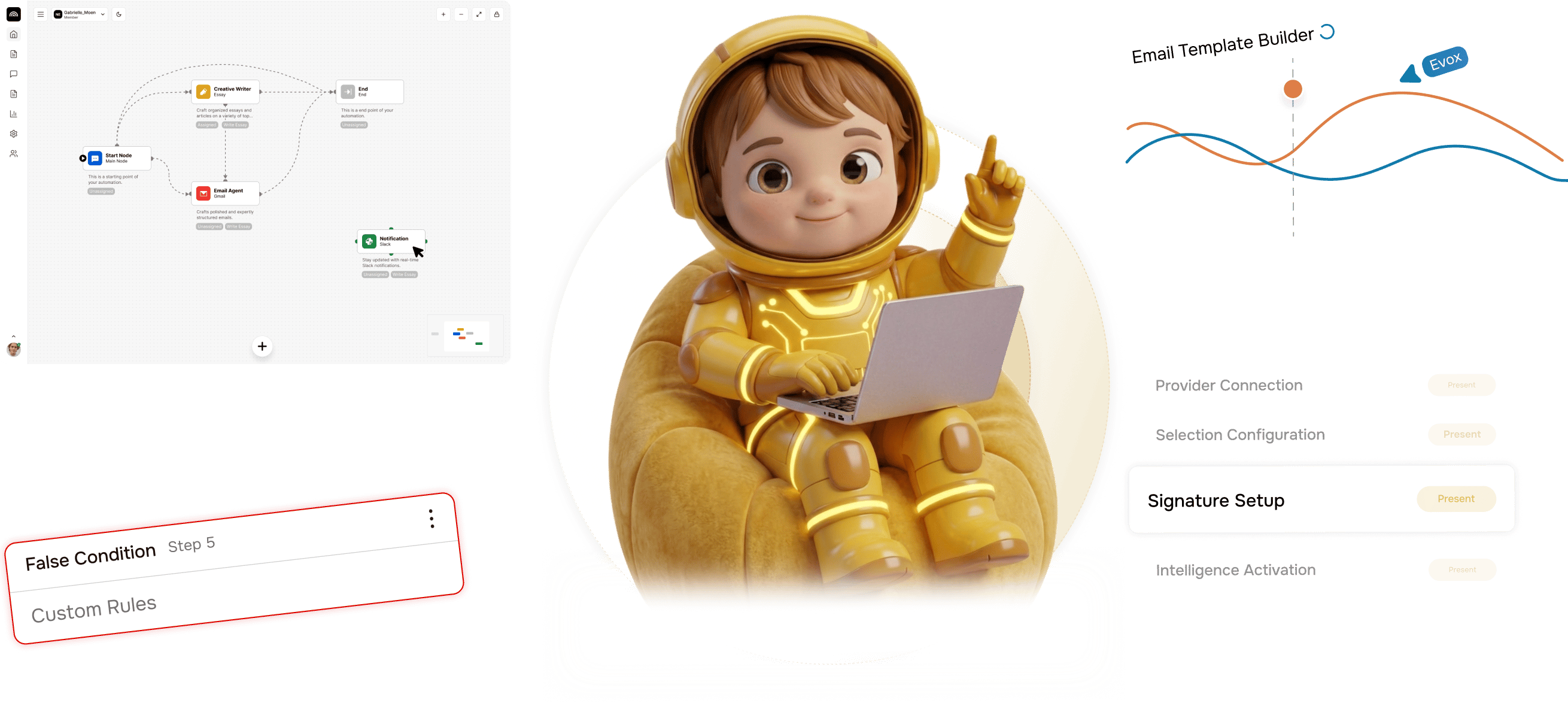
A visual schedule builder anyone can use, plus advanced expressions for engineers. Timezone aware, with a next run preview.
From I need this every Monday to a running schedule in 4 steps
Pick a schedule type, build it visually or in advanced expressions, set the timezone, and preview the next runs before save.
Pick a Type
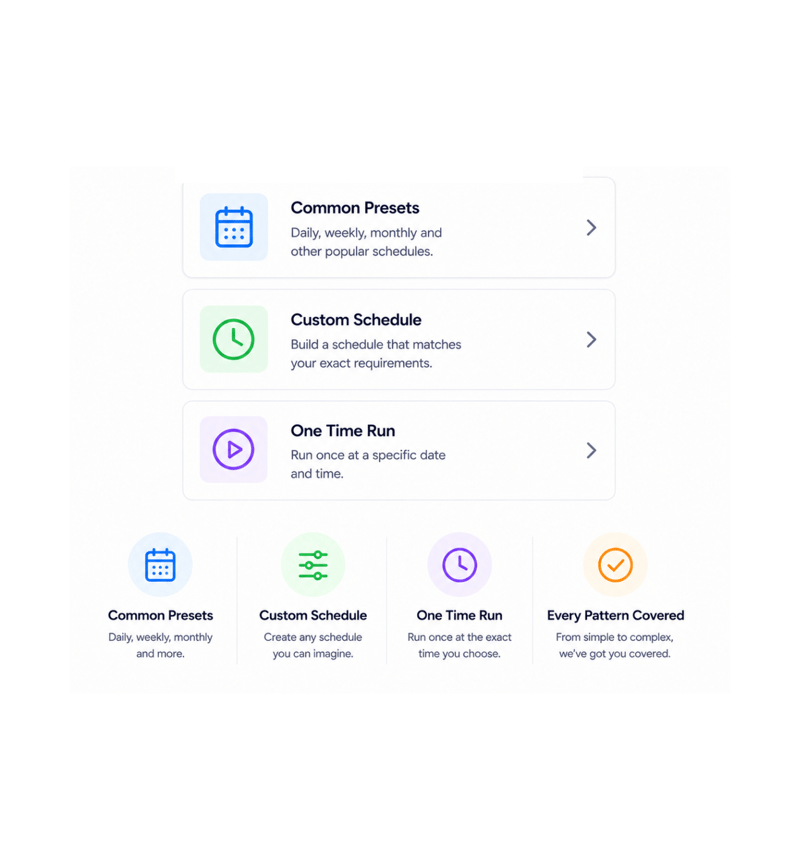
Pick a schedule type
Three categories cover every need. Common presets handle daily, weekly, and monthly runs. Custom schedules describe unusual patterns every weekday at noon, every fifteen minutes during business hours. One time schedules cover the one off jobs.
- Common Presets
- Custom Schedule
- One Time Run
- Every Pattern Covered
Visual Schedule Builder
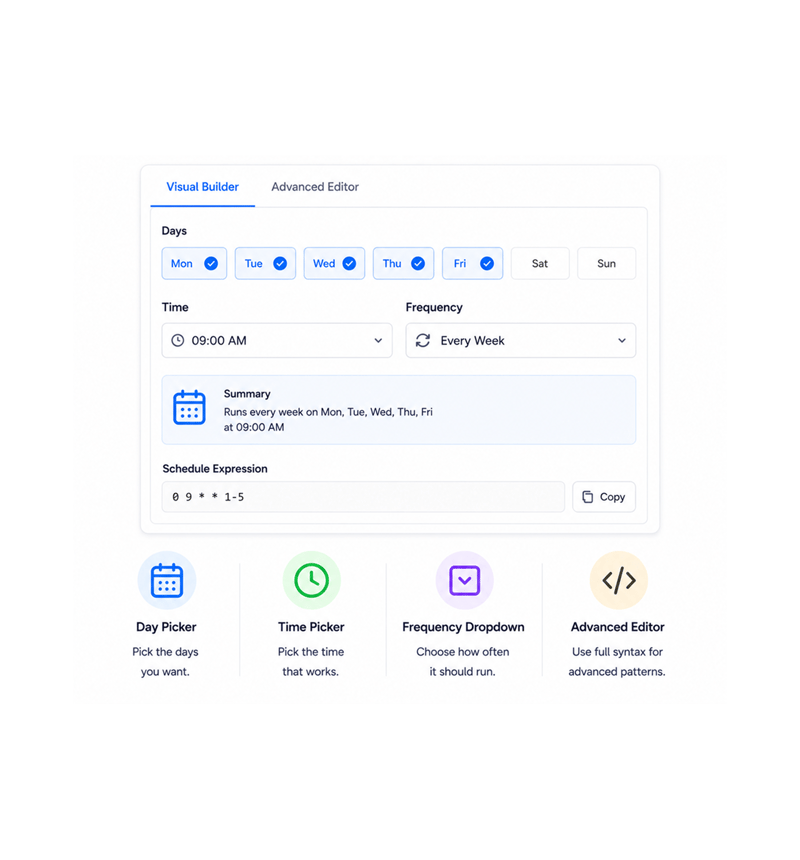
Build it visually, no syntax to learn
Day pickers, time pickers, and frequency dropdowns let anyone build a schedule. The platform composes the underlying expression. The advanced editor accepts full syntax for unusual patterns, with the visual builder updating in real time to match.
- Day Picker
- Time Picker
- Frequency Dropdown
- Advanced Editor
Timezone Aware
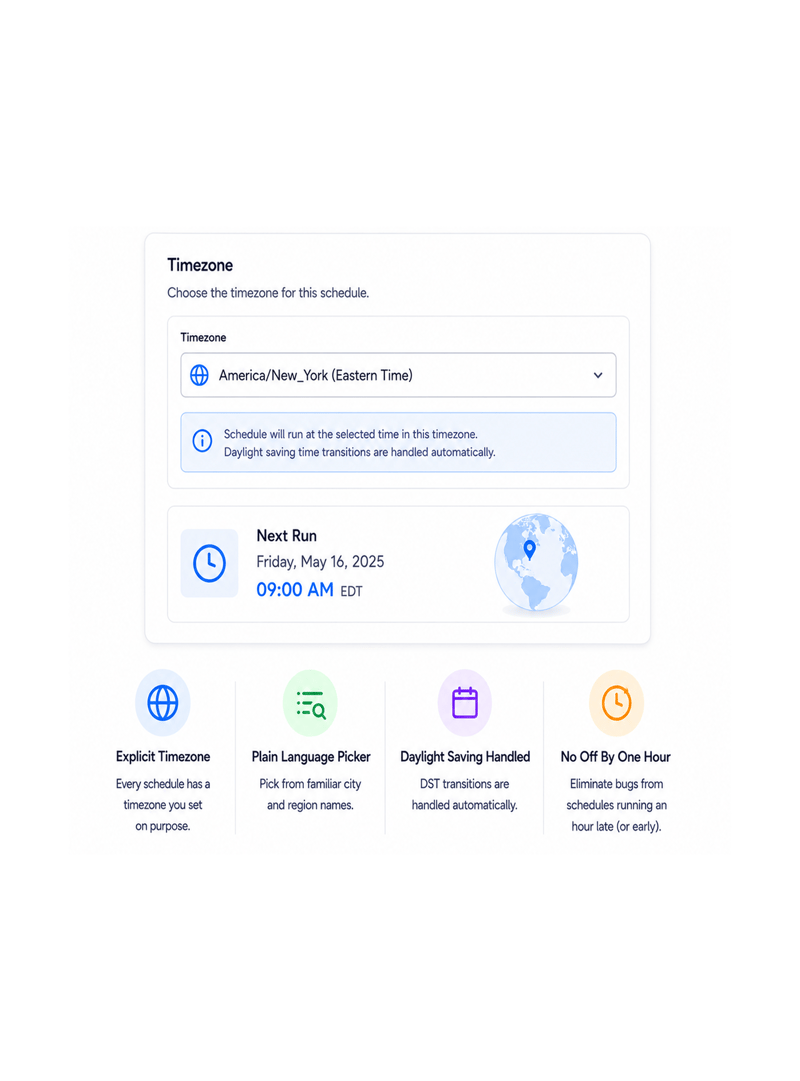
Set the timezone you actually mean
A workflow that runs at nine in the morning needs to know which nine. Every schedule has an explicit timezone picked from a familiar list of city or region names, and respects daylight saving automatically. The fire an hour late bugs stop happening.
- Explicit Timezone
- Plain Language Picker
- Daylight Saving Handled
- No Off By One Hour
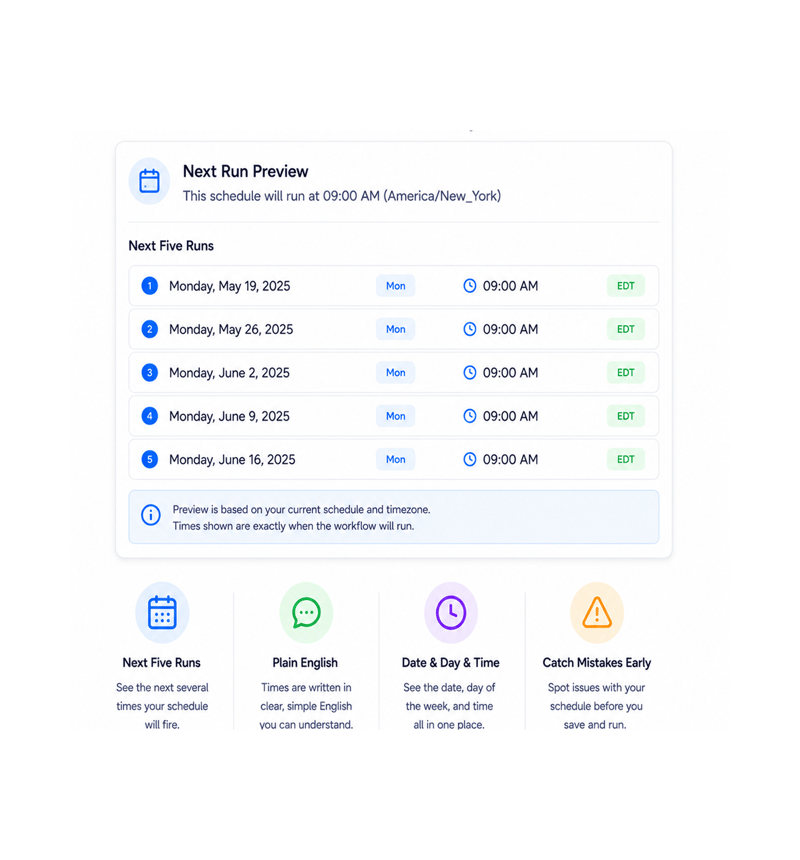
Next Run Preview
See the next runs before you save
The preview shows the next several fire times in plain English with date, day, and time in your timezone. The schedule you thought would run every Monday but actually runs on the first Monday gets caught here, not three weeks later.
- Next Five Runs
- Plain English
- Date & Day & Time
- Catch Mistakes Early
Six reasons teams never go back
Once a team has a builder anyone can use, a timezone model that works, and a preview catching mistakes, cron feels slow.

Schedules everyone can build
The visual builder uses day pickers, time pickers, and frequency dropdowns any teammate can use. Marketing, CS, and finance set schedules in seconds.

Presets cover the common patterns
Daily, weekly, monthly, the patterns behind most scheduling, are one click presets. Pick, adjust the time, done. "Every Monday at nine" is instant.

Timezone bugs simply stop happening
Every schedule has an explicit timezone in plain language and the platform handles daylight saving automatically. Each city gets local time.

Preview catches mistakes early
The next run preview shows the next fire times in plain English before save. The schedule you thought ran Monday but runs on the first gets caught.

One time schedules for one off jobs
Not everything should recur. The export for Friday's board meeting fits a one time schedule. Pick the date and time; it fires once and stays.

Power users still have full control
The visual builder covers common patterns; the advanced editor covers the unusual ones, like the last Friday each quarter. Both views stay in sync.
Schedules everyone can build
The visual builder uses day pickers, time pickers, and frequency dropdowns any teammate can use. Marketing, CS, and finance set schedules in seconds.
Presets cover the common patterns
Daily, weekly, monthly, the patterns behind most scheduling, are one click presets. Pick, adjust the time, done. "Every Monday at nine" is instant.
Timezone bugs simply stop happening
Every schedule has an explicit timezone in plain language and the platform handles daylight saving automatically. Each city gets local time.
Preview catches mistakes early
The next run preview shows the next fire times in plain English before save. The schedule you thought ran Monday but runs on the first gets caught.
One time schedules for one off jobs
Not everything should recur. The export for Friday's board meeting fits a one time schedule. Pick the date and time; it fires once and stays.
Power users still have full control
The visual builder covers common patterns; the advanced editor covers the unusual ones, like the last Friday each quarter. Both views stay in sync.




9300+
Teams scheduling recurring work without
a developer
Built for teams that run recurring work without watching the clock
Ops, marketing ops, customer success, finance, automation engineers, and founders use Revo where every recurring job has a real home. The visual builder is the entry, presets are the fast lane, timezone awareness is the safety net.
Builder
Aware
Presets
Preview
Visual for everyone, powerful for experts
Day pickers, time pickers, and frequency dropdowns let anyone build a schedule. Presets cover everyday patterns in one click. The advanced editor handles unusual patterns for engineers, with both views in sync.
Everything the scheduling layer ships with
A scheduling toolkit in the platform. Visual builder, presets, advanced expressions, timezones, and a next run preview.

Visual Schedule Builder
Day pickers, time pickers, and frequency dropdowns let anyone build a schedule without syntax. Pick days, time, frequency; done.

Common Presets
Daily, weekly, monthly presets cover most needs in one click. Pick, adjust the time, done. "Every Monday at nine" takes seconds.

Advanced Schedule Expressions
Standard schedule expression syntax for power users. Every fifteen minutes during business hours, the last Friday of every quarter all in full syntax.

Timezone Aware Scheduling
Every schedule has an explicit timezone picked from a list of city names. Daylight saving handled automatically the workflow at nine runs at nine all year.

One Time Schedules
One time schedules fire a workflow exactly once at a specific date and time the Friday board meeting export, the midnight migration.

Next Run Preview
Before save, the platform shows the next fire times in plain English with date, day, and time. Schedules that do not mean what you thought get caught here.
Everything you need to know
Common questions about the visual builder, advanced editor, timezones, presets, and preview.
Describe the workflow, Revo builds it across 1,000+ apps.
Write an automation in plain English and Revo connects your tools, then sends AI agents to take action while you sleep.
- 1,000+
- app integrations
- 99.9%
- workflow uptime
- 0
- lines of code to build
- 10x
- faster than manual