





Kanban Board with Drag and
Drop Task Management
Custom Kanban boards: configurable columns, drag-and-drop status changes, board reordering, card previews, and live updates.
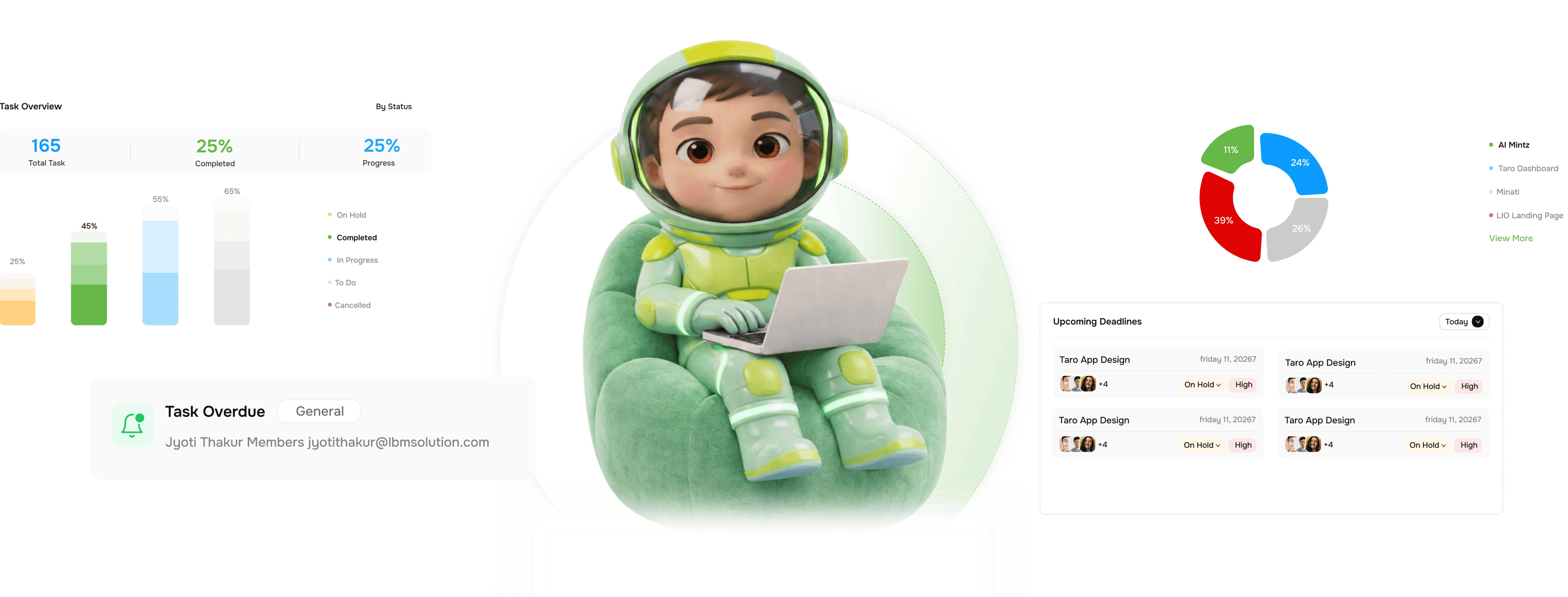
From a blank board to your team's live workflow in four steps
Set up TARO's Kanban once and it runs itself: drag a card, the column updates status, the team sees it.
Configure
Build the board around how your team actually works
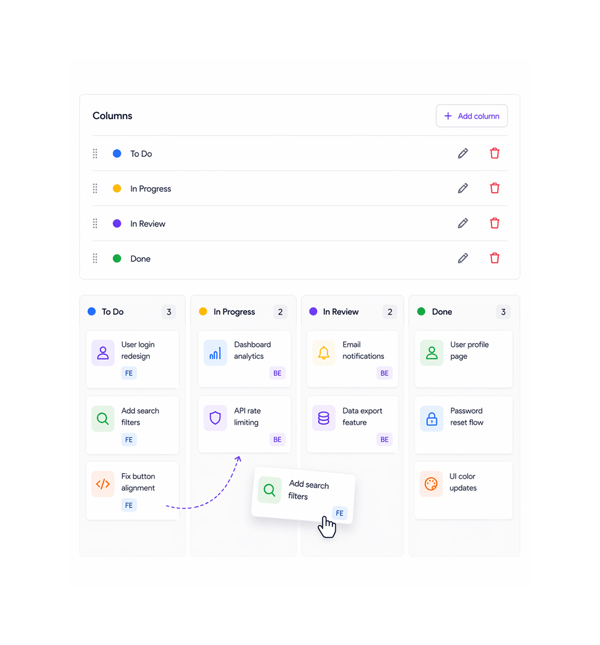
Create, rename, reorder, and delete columns to match your process, from a three-column board to a seven-stage QA pipeline. Each column maps to a task status, so dragging a card into a column updates that status automatically.
Cards
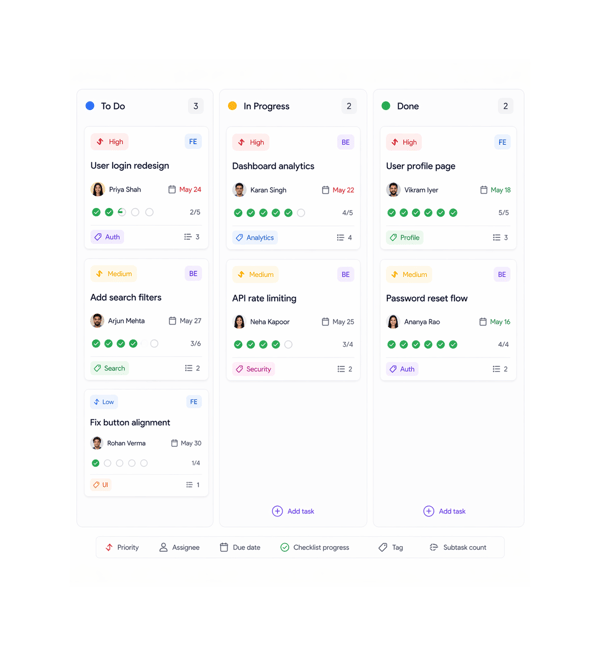
Every card shows the full picture without opening the task
Each card previews what your team needs at a glance priority, assignee, due date, checklist progress, tag, and subtask count all on the card surface without clicking in. The card is the summary; the task detail is one click away when you need it.
Drag
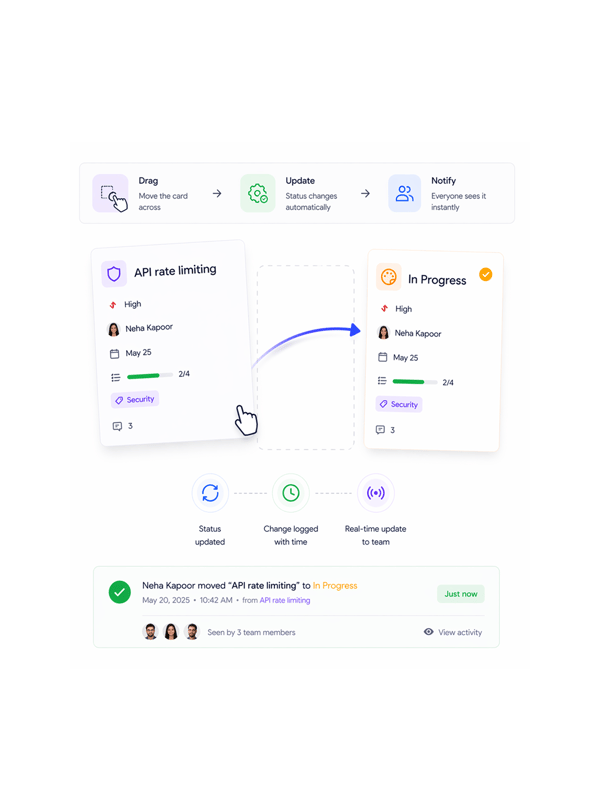
Drag a card across. Status updates instantly.
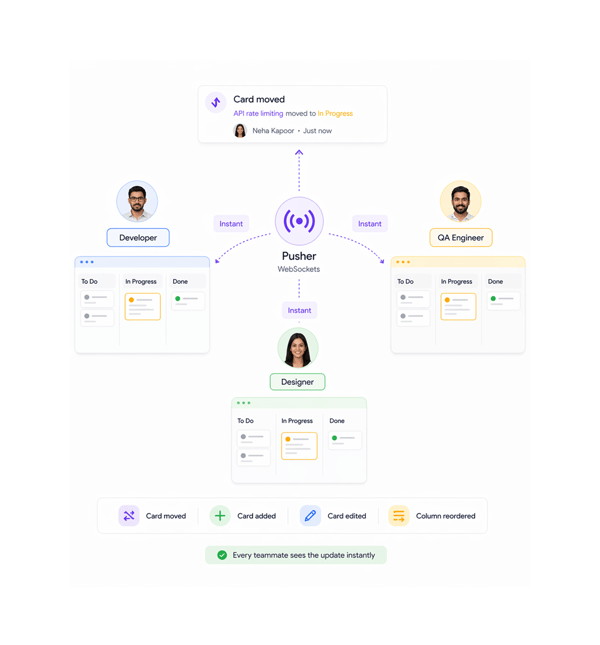
Drag a card to a new column and three things happen at once: the task's status updates to match, the change is logged to activity history with user and timestamp, and Pusher pushes it to every board live.
Real time
Every teammate's board stays in sync automatically
TARO uses Pusher WebSockets to push every board event card moved, added, edited, or column reordered to every connected browser the instant it happens. The standup opens with a board that's already current. No stale cards, no missed overnight moves.
- Lead created
- Company auto created
- Contact auto linked
- AI score applied
- Live table update
Six reasons teams never go back
Once your standup board shows every teammate's card movements from the last 24 hours in real time, a static board nobody trusts feels absurd.

Columns that match your process not a template
Add, rename, reorder, and delete columns to build the board your team actually uses. A three-column board and a seven-stage QA pipeline are both valid.

One drag updates status, history, and the team
Dragging a card is a status update, a history log entry, and a real time push to every teammate's board all in one gesture. The board is the interface; the drag is the action.

Cards that show context without opening the task
Priority, assignee, due date, checklist progress, tags, and subtask count all sit on the card. The board shows what's in review and who owns it, no click.

Real time updates no refresh, no sync
Pusher WebSockets push every board event to every connected browser instantly. When a developer moves a card at 2pm, teammates see it move at 2pm not at the next standup.

WIP limits flag column overloads visually
Set a WIP limit on any column and TARO highlights it when exceeded. The bottleneck shows on the board itself, no separate analytics view to find it.

Board reordering changes the column sequence for everyone
Drag columns to reorder the board. The new order saves immediately and shows on every teammate's view, a board-level change, not a personal preference.
Columns that match your process not a template
Add, rename, reorder, and delete columns to build the board your team actually uses. A three-column board and a seven-stage QA pipeline are both valid.
One drag updates status, history, and the team
Dragging a card is a status update, a history log entry, and a real time push to every teammate's board all in one gesture. The board is the interface; the drag is the action.
Cards that show context without opening the task
Priority, assignee, due date, checklist progress, tags, and subtask count all sit on the card. The board shows what's in review and who owns it, no click.
Real time updates no refresh, no sync
Pusher WebSockets push every board event to every connected browser instantly. When a developer moves a card at 2pm, teammates see it move at 2pm not at the next standup.
WIP limits flag column overloads visually
Set a WIP limit on any column and TARO highlights it when exceeded. The bottleneck shows on the board itself, no separate analytics view to find it.
Board reordering changes the column sequence for everyone
Drag columns to reorder the board. The new order saves immediately and shows on every teammate's view, a board-level change, not a personal preference.




800+
product teams
Built for every team that touches pipeline
Engineering leads, product managers, and scrum masters use TARO's Kanban board as the shared layer for active work. The board is the standup, the drag is the update, and real-time sync keeps it current.
Update lag for teammates
Drag to update status
Custom columns per board
Moves logged to history
The standup board shows what actually happened not what people remember.
Open the Kanban board at standup and the real-time activity feed shows every card movement since the last sync. No one reports what they did the board shows it. Standup shifts to handling what's blocked or at risk.
Kanban is just one view
The same task data on your Kanban board renders in five other views, with TARO's AI intelligence running beneath all of them.

Task Management
The same tasks in List view with inline editing, bulk actions, sorting, filtering, and 12+ fields as table columns. Switch from board to list in one click.

Sprint & Agile
Run the full sprint lifecycle, planning, burndown, AI workload balancing, and completion prediction, with the Kanban board as the primary delivery view.

Bottleneck Analysis
TARO reads your Kanban column WIP counts and flags overloaded stages, single points of failure, and broken handoffs with prescribed fixes for each.

Auto Prioritization
TARO ranks the tasks feeding your backlog by due date, dependencies, and strategic impact, so the most important work rises to top.
Everything you need to know about TARO's Kanban Board
Common questions from engineering leads, PMs, and scrum masters evaluating TARO's board.
Taro plans, tracks, and flags risks before they hit.
Keep every project on track with AI that spots slippage early and tells your team what to do next.
- 87%
- on-time delivery
- 2.4x
- team throughput
- 0
- deadlines missed
- 35%
- fewer status meetings