





Time Tracking with Timers, Manual
Entry, and Reporting Built In
Start-stop timers per task, manual entries, pause/resume. One active timer per user. See total vs estimated hours live.
From starting a timer to a live hours variance report in four steps
TARO's time tracking runs inside every task, no separate app. Start, pause, stop, or log manually.
Track
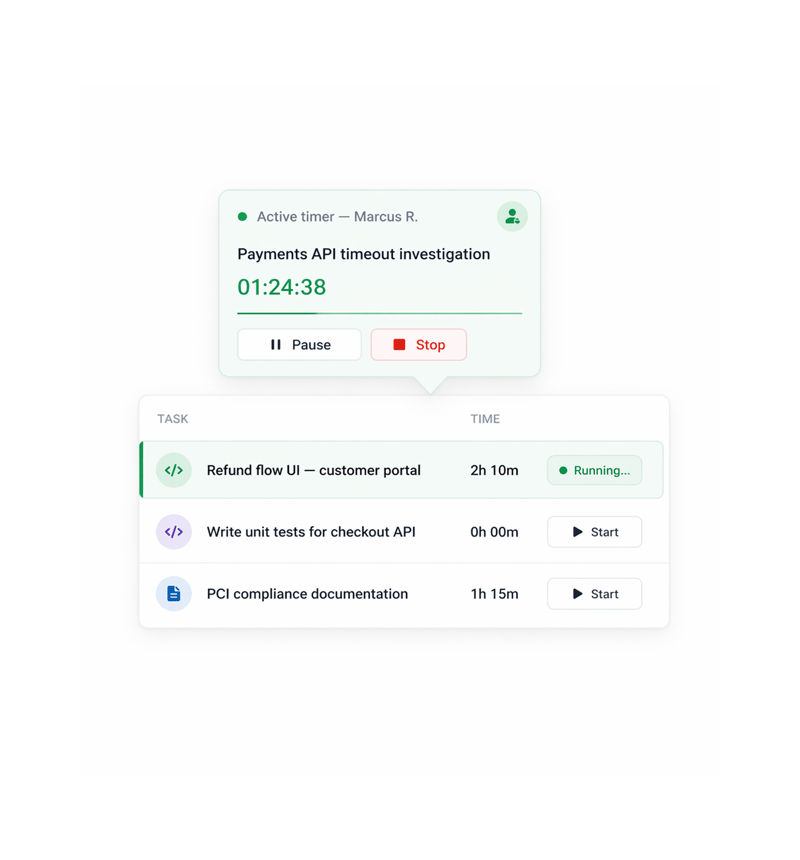
One click starts the timer. One active session per user always.
Every task has a start-timer button in the detail panel and List view. Clicking it starts a session tied to that task and user. TARO allows one active timer per user: a new timer stops and logs the previous one.
Log
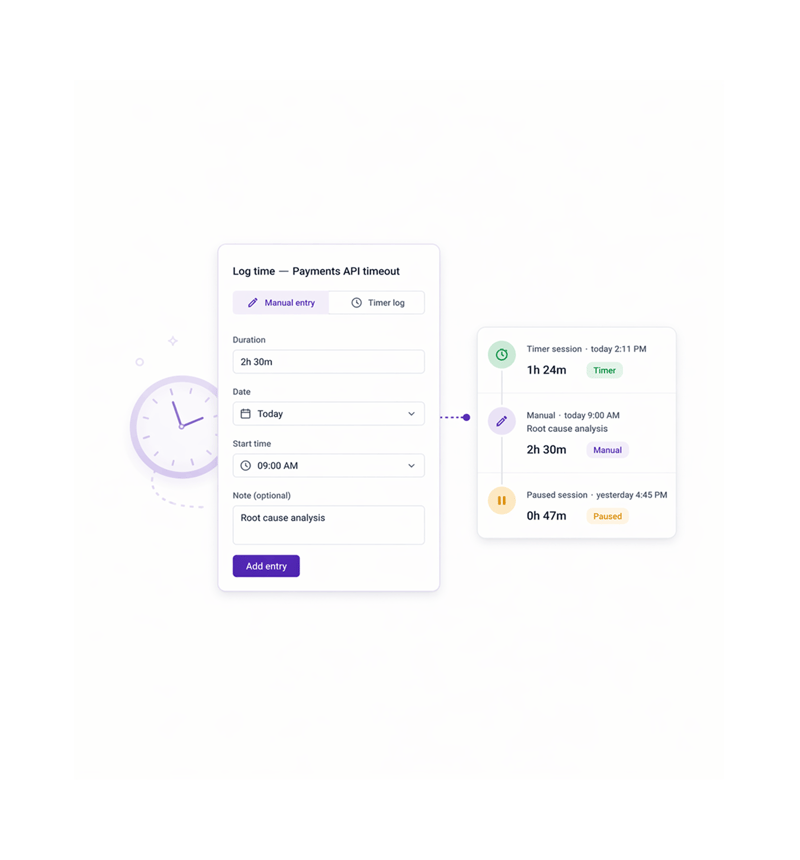
Forgot to start the timer? Log it manually. Mid task break? Pause it.
A running timer isn't the only way to record work. TARO supports manual entries: add any duration to any task with a date, time, and note. Each is labelled timer-tracked or manual so the log stays auditable.
Analyse
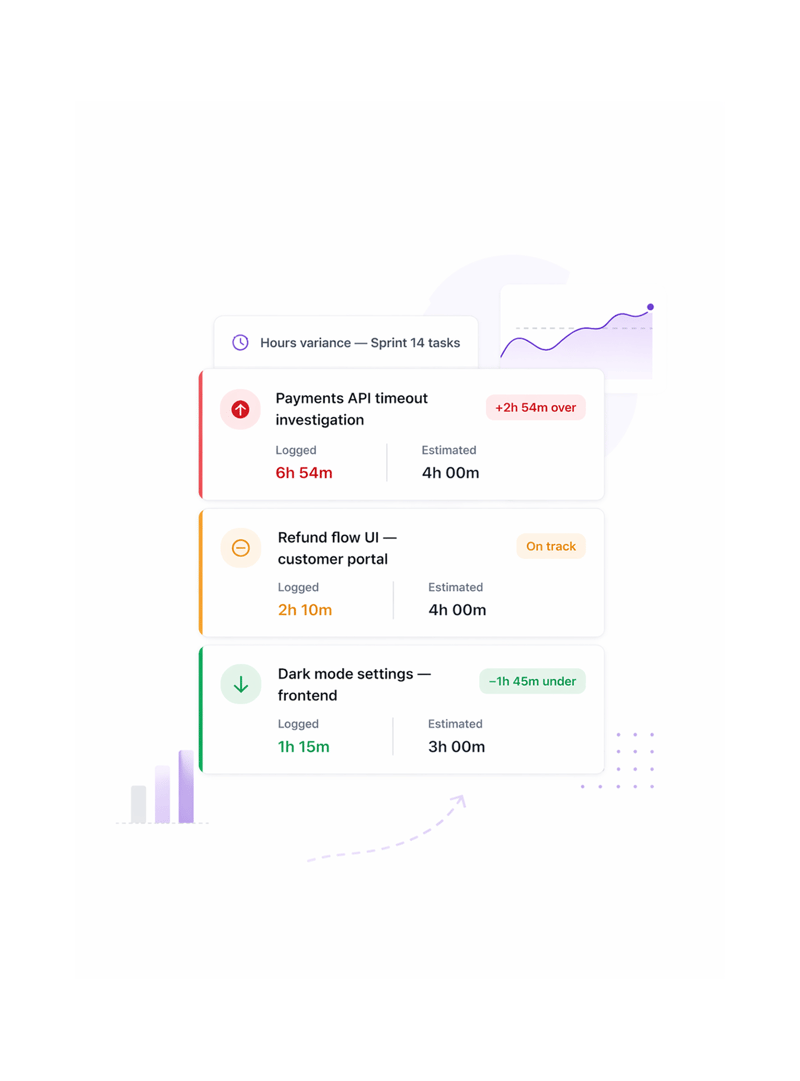
See where estimates were wrong before the sprint ends.
Every task with an estimated-hours field shows a live variance, the gap between estimated and logged hours. Tasks over estimate are flagged so leads can reassign or descope before it becomes a missed deadline.
Monitor
Every active timer across the team visible in one widget.
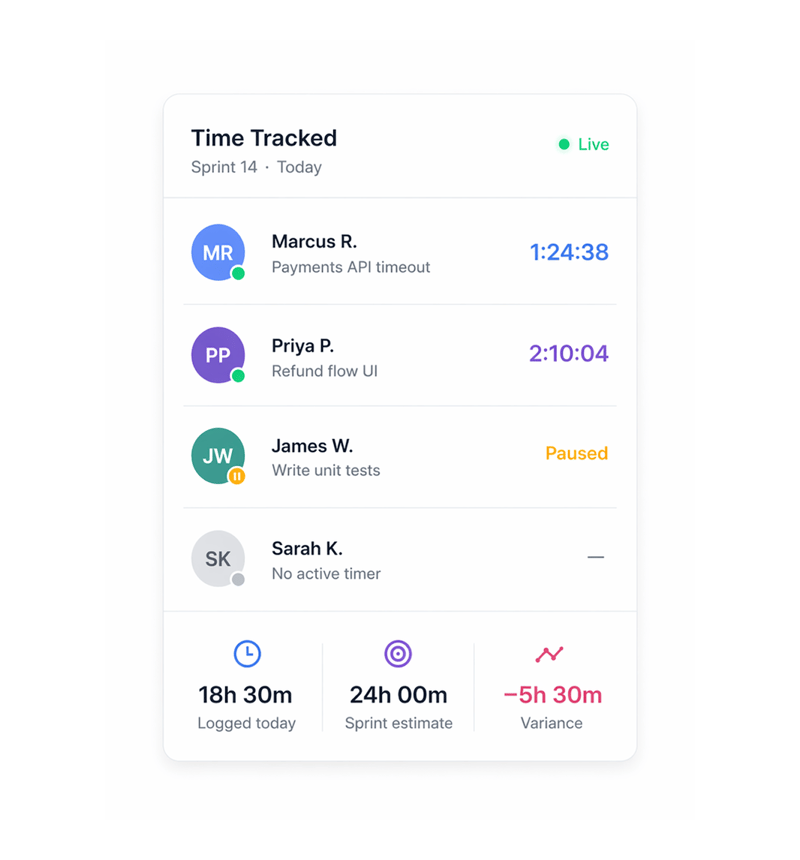
The Time Tracked widget shows every member with an active timer, which task, and for how long, alongside the day's total hours, the sprint's estimated hours, and current variance. It updates in real time.
- Lead created
- Company auto created
- Contact auto linked
- AI score applied
- Live table update
Six reasons teams never go back
Time tracking that lives inside the task, not in a separate app nobody opens, is the only kind used consistently enough to produce real data.

Timer lives inside the task zero context switch
The start-timer button is in the task detail panel and in List view. No separate app, no extension to install, starting a timer is one click from the work.

One active timer enforced no double-counting
Starting a new timer stops and logs the previous session. One user, one clock, one task at a time, so logged hours stay clean and attributable.

Manual entries fill the gaps timers miss
Not every session starts with a timer click. Calls, planning, work done before the app opened, can all be logged manually with duration, date, note.

Pause keeps a session alive through interruptions
A 20-minute standup shouldn't bloat a task's time. Pausing suspends the session; elapsed time holds and resumes where you left off.

Variance view shows overruns before they become misses
Every task with an estimate shows its live variance. A task two hours over on day 3 of a 5-day sprint is actionable; at sprint close, a post-mortem.

Dashboard widget gives leads a live team view
The Time Tracked widget shows every active timer and today's total hours in one panel. Leads see who's working, on what, and for how long.
Timer lives inside the task zero context switch
The start-timer button is in the task detail panel and in List view. No separate app, no extension to install, starting a timer is one click from the work.
One active timer enforced no double-counting
Starting a new timer stops and logs the previous session. One user, one clock, one task at a time, so logged hours stay clean and attributable.
Manual entries fill the gaps timers miss
Not every session starts with a timer click. Calls, planning, work done before the app opened, can all be logged manually with duration, date, note.
Pause keeps a session alive through interruptions
A 20-minute standup shouldn't bloat a task's time. Pausing suspends the session; elapsed time holds and resumes where you left off.
Variance view shows overruns before they become misses
Every task with an estimate shows its live variance. A task two hours over on day 3 of a 5-day sprint is actionable; at sprint close, a post-mortem.
Dashboard widget gives leads a live team view
The Time Tracked widget shows every active timer and today's total hours in one panel. Leads see who's working, on what, and for how long.




800+
trusted teams
Built for every team that needs
to know where the hours went
Engineering teams use time tracking to calibrate sprint estimates. Agencies build invoices from real data. PMs check the sprint's pace. The common thread: you can't improve what nobody recorded.
Active timer per user
Manual entries per task
Variance view per task
Extra apps needed
Sprint velocity tells you how many tasks completed. Time tracking tells you why some took three times longer.
Teams use variance data to calibrate estimates. A task estimated at 4 hours but logged at 6h 54m isn't a failure, it's data. Next sprint they estimate better and finish.
Time tracking feeds the numbers. These features make sense of them.
Logged hours power TARO's velocity calculations, workload intelligence, and over-budget alerts.

Sprint & Agile
Logged hours feed sprint velocity. Time-per-task data from past sprints makes next sprint's capacity estimates more accurate.

Risk Alerts Dashboard
The Over Budget alert converts entries at workspace's hourly rate. At 80% of budget it fires, from real hours, not manual entries.

Workload Distribution
Daily logged hours per member feed the workload distribution view, flagging overload by actual hours spent, not just task count.

Analytics & Dashboards
The Time Tracked widget surfaces active timers, today's total, and sprint variance in one view, giving leads a live overview, no check-ins.
Everything you need to know about Time Tracking
Common questions from engineering leads, agency PMs, and contributors evaluating TARO's time tracking.
Taro plans, tracks, and flags risks before they hit.
Keep every project on track with AI that spots slippage early and tells your team what to do next.
- 87%
- on-time delivery
- 2.4x
- team throughput
- 0
- deadlines missed
- 35%
- fewer status meetings