





Whiteboard Collaboration with Live
Drawing and Real Time Sync
Per-task embedded whiteboards: freeform paths, shapes, text, and images. Real-time collaborative drawing via Pusher.
From opening a task to a live collaborative whiteboard in four steps
Every TARO task has a whiteboard tab. Open it, draw, and every collaborator sees each stroke live.
Draw
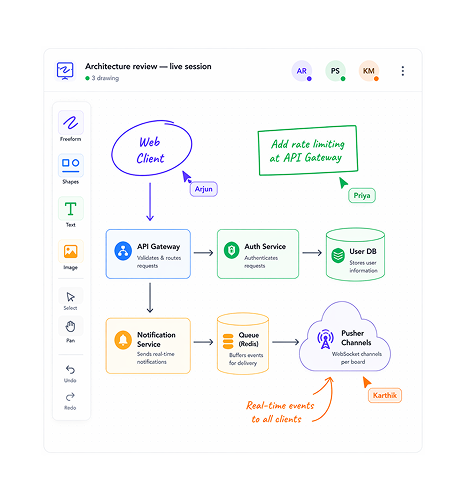
Freeform paths, shapes, text, and images on one canvas.
TARO's whiteboard toolbar has four tools covering everything a team puts on a canvas: freeform paths to annotate, sketch, or arrow; shapes for rectangles, circles, and lines; text blocks; and image upload.
Collaborate
Every stroke pushed to every collaborator the instant it's drawn.
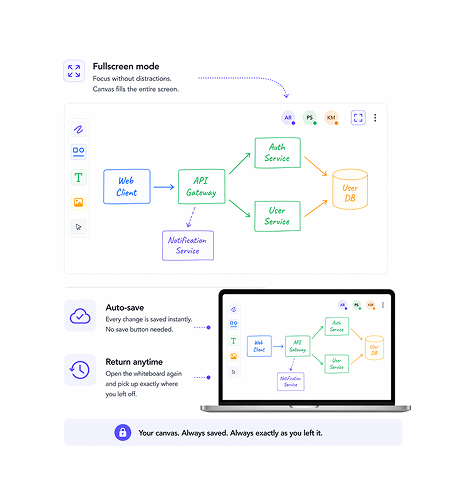
TARO's whiteboard runs on a dedicated Pusher WebSocket channel per board, the same infrastructure as the Kanban board. Every drawing operation fires an event, and all collaborators with the board open get it live.
Focus & Persist
Go fullscreen for the deep session. Return to find it exactly as left.
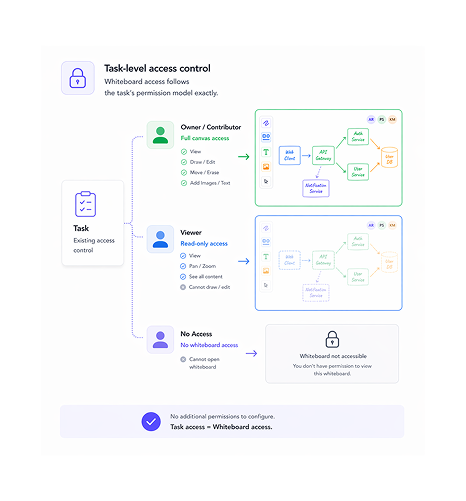
When a session needs full focus, fullscreen mode expands the canvas to fill the browser window with only the toolbar visible. Every stroke, shape, text, and image is saved automatically, no save button.
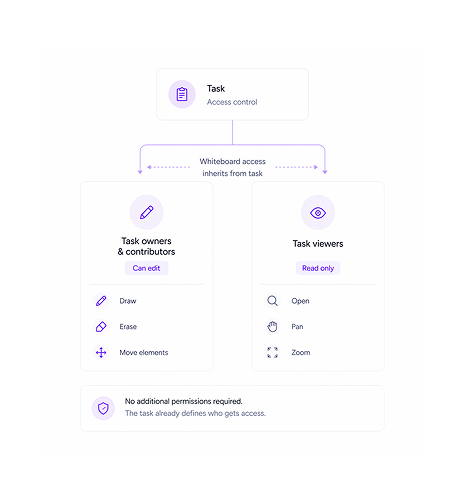
Access
Whiteboard access follows the task's permission model exactly.
Whiteboard access isn't a separate permission, it inherits from the task: whoever can view or edit the task can view or edit the whiteboard. Owners and contributors draw; viewers can open, pan, and zoom read-only.
Six reasons teams never go back
A whiteboard inside the task it belongs to never goes stale. A diagram three Figma links away from its task gets forgotten.

Embedded in the task context never gets lost
The whiteboard lives in the task in its own tab beside description, comments, and files. A diagram sketched in planning is still there next time.

Real time drawing means the session is genuinely shared
Every stroke appears on every collaborator's canvas the instant it's drawn. It's not a screen share where one drives, it's a shared surface.

Fullscreen gives the canvas the focus it deserves
Architecture sessions and design reviews need space, not a 400px panel in a sidebar. Fullscreen expands the canvas to the full window in one click.

Auto save means no session is ever lost
Every stroke is saved immediately. No save button, no unsaved state, no "save before closing?" prompt. A crash or tab close loses nothing.

Access control requires zero extra configuration
Whiteboard access is inherited from the task's permissions, no separate share link to generate. Adding someone to the task grants it.

Version history turns the canvas into a living document
Every session is snapshotted. A design sketched in planning keeps a full history of every state. Restore any version in one click.
Embedded in the task context never gets lost
The whiteboard lives in the task in its own tab beside description, comments, and files. A diagram sketched in planning is still there next time.
Real time drawing means the session is genuinely shared
Every stroke appears on every collaborator's canvas the instant it's drawn. It's not a screen share where one drives, it's a shared surface.
Fullscreen gives the canvas the focus it deserves
Architecture sessions and design reviews need space, not a 400px panel in a sidebar. Fullscreen expands the canvas to the full window in one click.
Auto save means no session is ever lost
Every stroke is saved immediately. No save button, no unsaved state, no "save before closing?" prompt. A crash or tab close loses nothing.
Access control requires zero extra configuration
Whiteboard access is inherited from the task's permissions, no separate share link to generate. Adding someone to the task grants it.
Version history turns the canvas into a living document
Every session is snapshotted. A design sketched in planning keeps a full history of every state. Restore any version in one click.




800+ product teams
already using TARO
Built for every team that thinks visually before they build
Engineering teams sketching system architecture and design teams annotating mockups need the same thing: a canvas that lives next to the work it describes, not three tools away in a separate application.
Drawing tool types
Canvas per task
Save actions needed
The architecture diagram is inside the task not in a Miro board nobody remembers the link to.
Teams open the whiteboard tab to sketch the system design before building. The lead draws while the backend team annotates live. Anyone opening the task later sees the agreed diagram.
Whiteboard is where ideas live. These features are where they get built.
The architecture sketched on the whiteboard becomes the task structure, the dependencies, and delivery.

Task Management
The task holding the whiteboard also holds subtasks, assignees, due dates, and dependencies, turning a session into a delivery plan.

Real Time Collaboration
The same Pusher layer that powers the whiteboard also pushes task assignments, status changes, and comments live.

Task Comments
Comments live alongside the whiteboard, so the text discussion and visual diagram share one panel. No switching to a Slack thread.

Task Dependencies
Architecture diagrams on the whiteboard often reveal the dependency structure. Task Dependencies lets you formalise it.
Everything you need to know about Whiteboard & Collaboration
Common questions from engineering leads, designers, and product managers evaluating TARO's whiteboard.
Taro plans, tracks, and flags risks before they hit.
Keep every project on track with AI that spots slippage early and tells your team what to do next.
- 87%
- on-time delivery
- 2.4x
- team throughput
- 0
- deadlines missed
- 35%
- fewer status meetings